
Make your own forms, like a staff application or an event sign-up. Members fill them in on a page of their own, and you review what they send on the dashboard. Find it under Utilities > Forms.
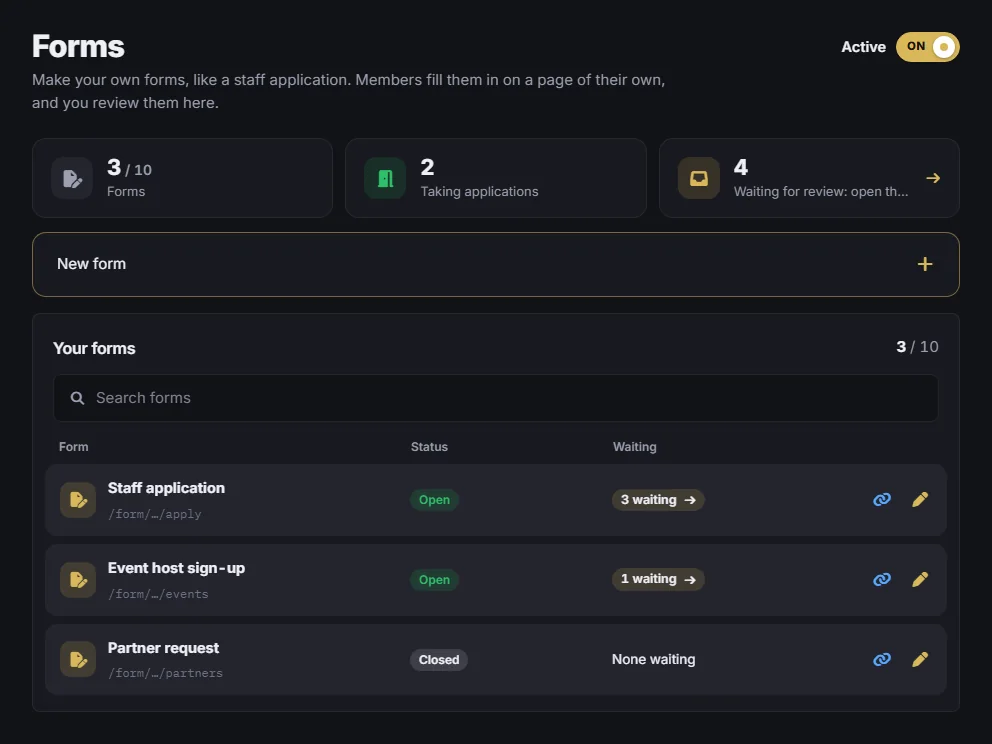
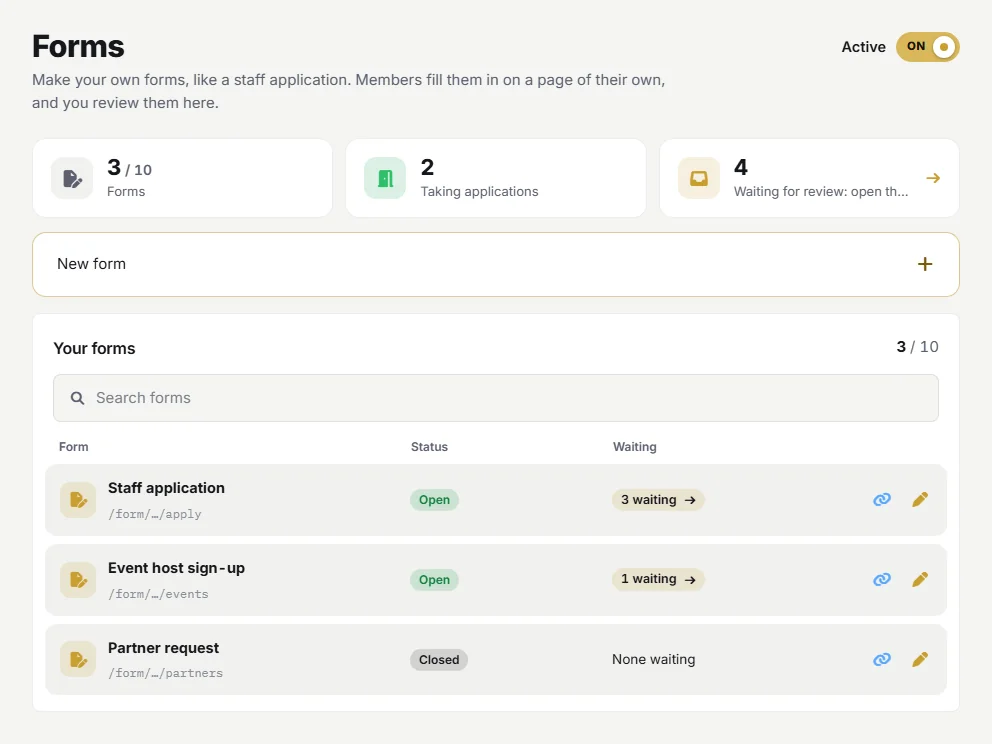
Your forms
- New form starts from the Staff application template or a blank form. You can have up to 10.
- The list shows each form's link, whether it's Open or Closed, and how many applications are waiting. Click the waiting count to go straight to them.
- The link button copies the form's address to share in your server.
Questions
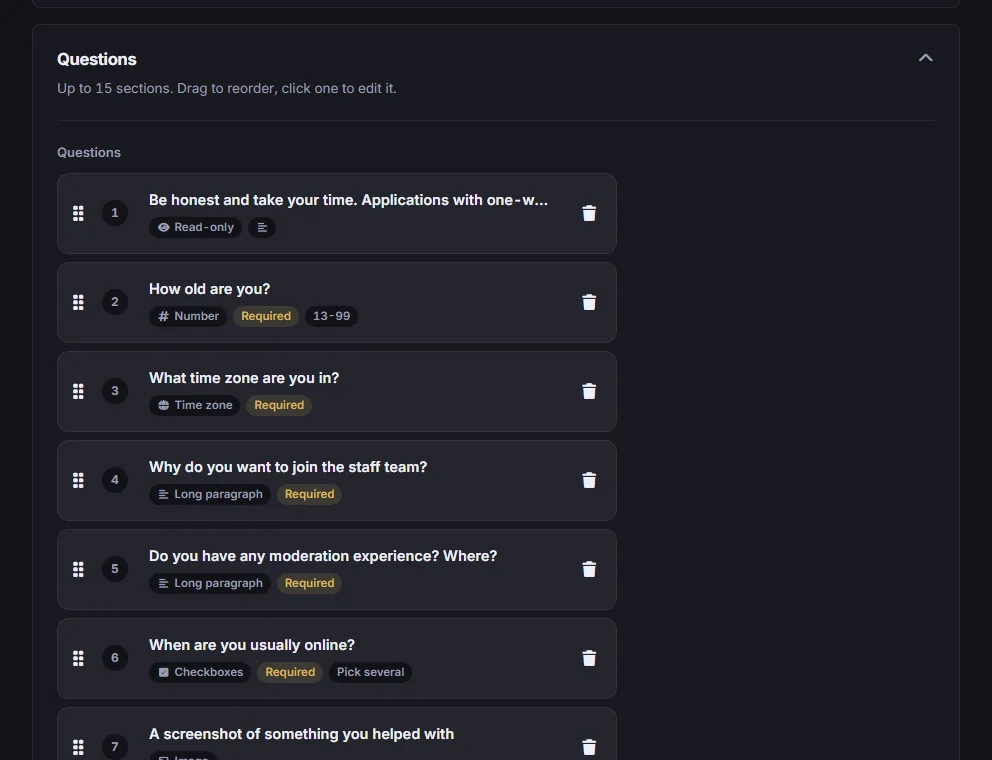
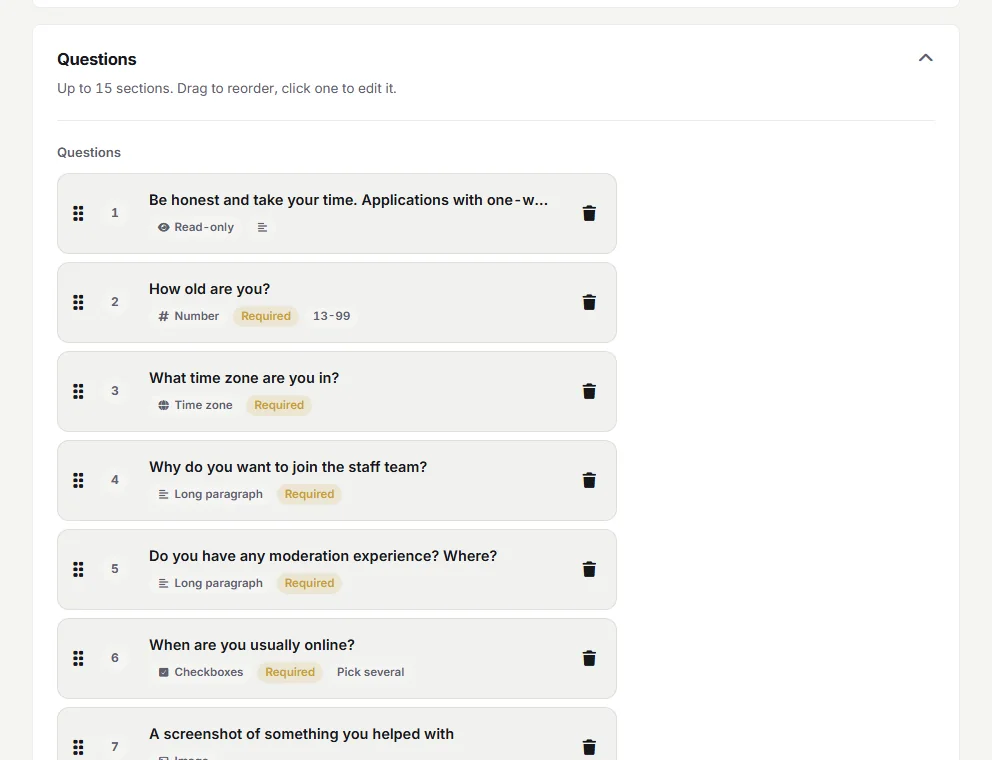
Each form has up to 15 sections. Drag them to change the order, and click one to edit it. Every question can be required or optional, with a little help text under it.
- Read-only text: information to read, like rules before applying. Nothing to answer.
- Short answer and Long paragraph: written answers, with a shortest and longest length if you want one.
- Tick boxes: pick one, or turn on Allow more than one to let members pick several.
- Dropdown: your own list, or years from a starting year to now.
- Number: a whole number, such as an age, between a lowest and highest you choose.
- Email: only real email addresses are accepted.
- Date and Time: phones use their own date and time pickers.
- Time zone: members search every time zone for theirs.
- Image: a JPG, PNG or WebP picture up to 3 MB, such as a screenshot. A form can have up to 3.
- Video: a full YouTube link. You can watch it with the application.
Settings
- Link name: the end of the form's address, such as /form/your-server/apply.
- Who can apply: by default members must log in with Discord and be in your server. Turn it off to let anyone apply, giving their Discord username instead.
- Time between applications: how long someone waits before applying again.
- New applications: a channel to post each new application in, and roles to mention.
- When accepted: a role to give the member when you accept them.
What members see
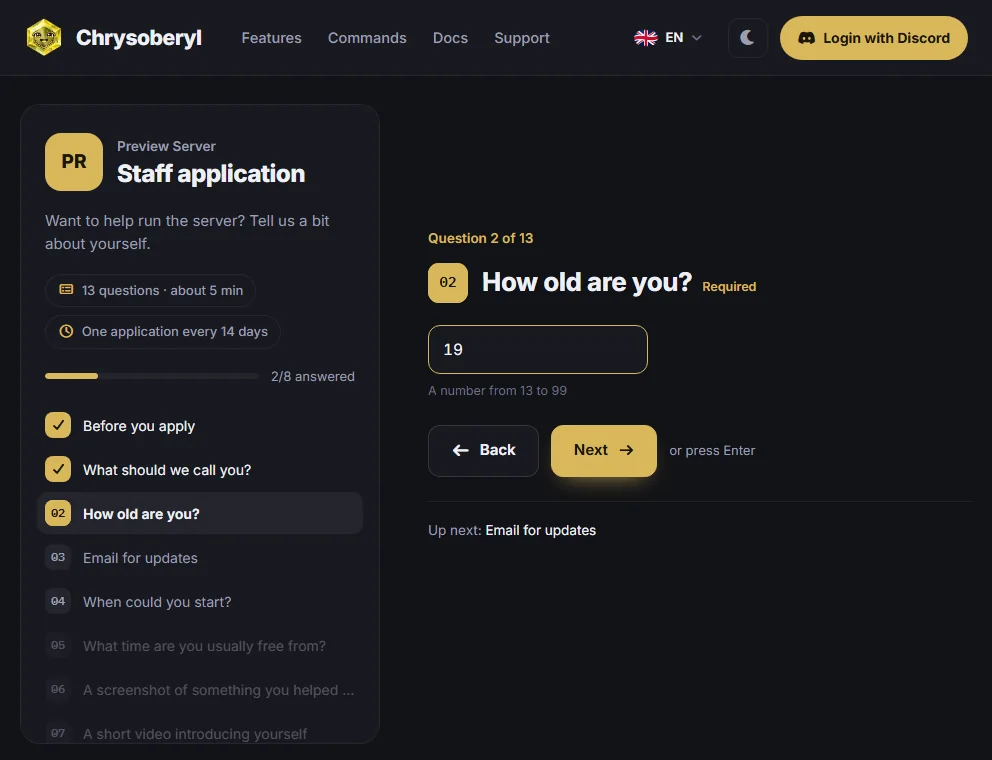
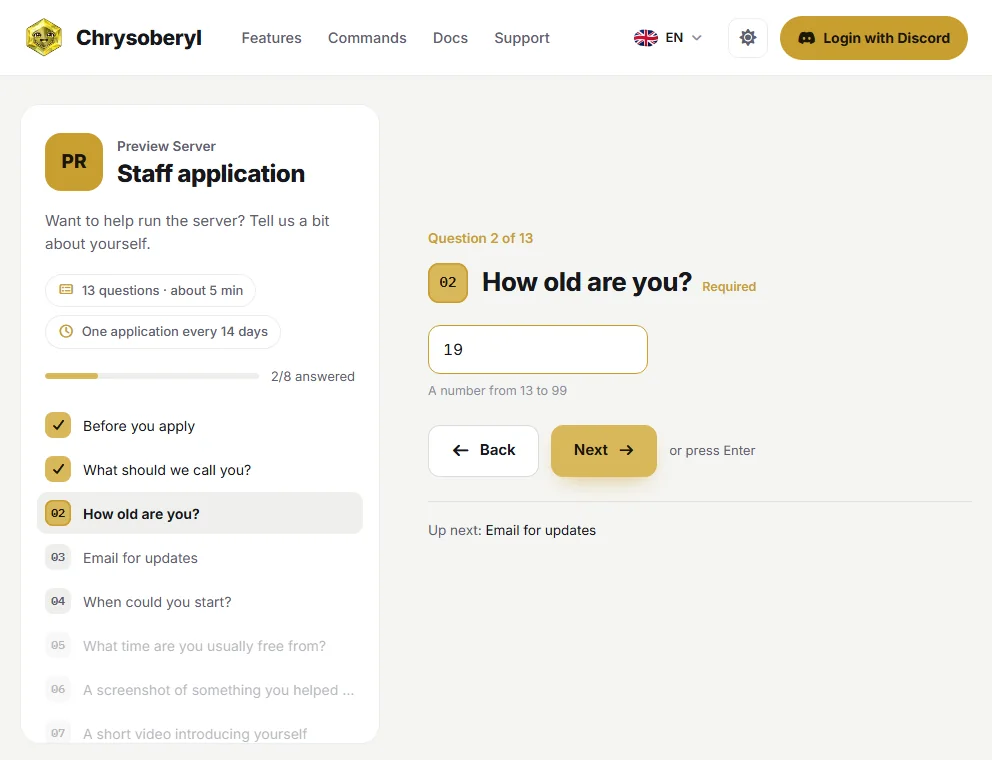
Members answer one question at a time. A panel beside the form shows your server, what to expect and every question, so they can go back to one. On phones, Back and Next stay at the bottom of the screen.
A required question has to be answered before moving on, and answers are checked as they go, like an email address or a number in range. Members can see their past applications and your decisions further down the page.
Applications
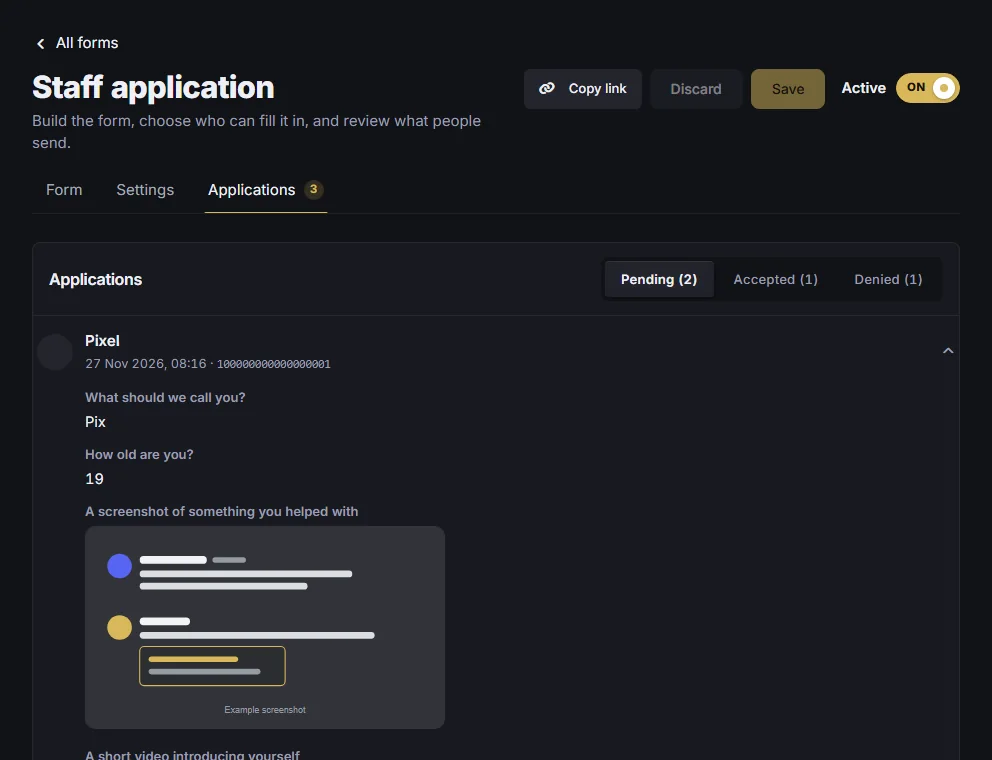
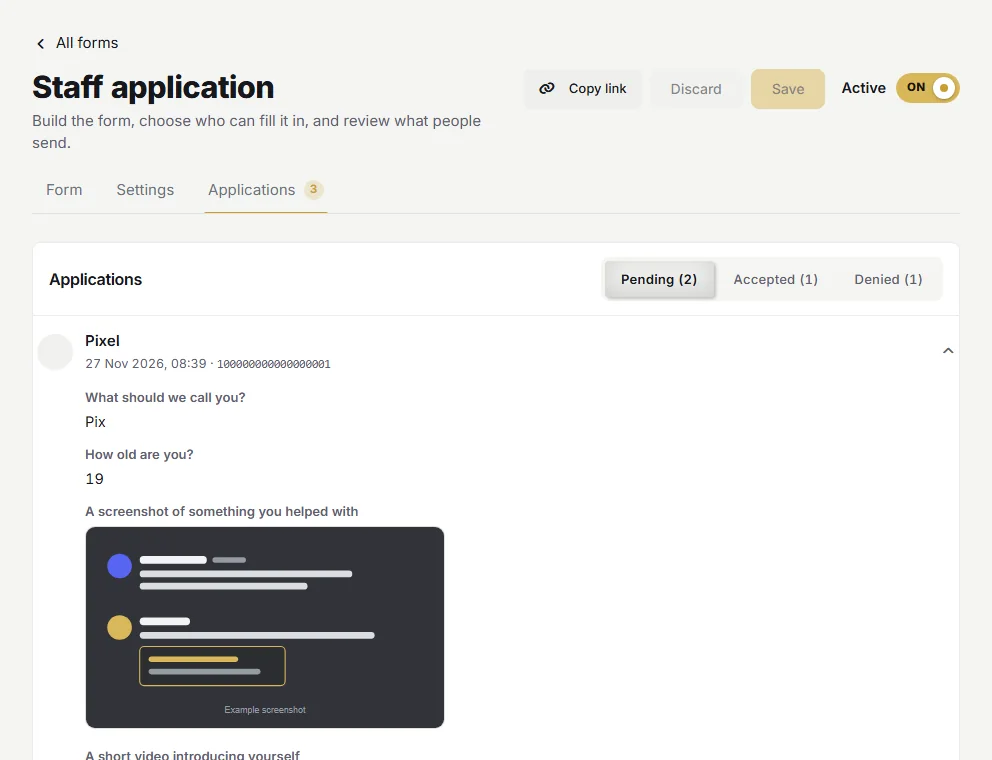
The Applications tab lists what members sent, sorted into Pending, Accepted and Denied. Open one to read the answers, see any picture and watch any video. Add a note if you like, then Accept or Deny. The member gets a DM with your decision and your note, and accepting gives them the form's role.